Direct Deposit
The State of Kansas requires that all employees be paid through direct deposit. Therefore, employees are required to have an active bank account or payroll pay card in effect at all times.
Updating Your Direct Deposit Information
You can update your direct deposit information online in HR/Pay or in-person at the Payroll Office.
NOTE for Updated Accounts: It is dependent upon the payroll cycle if your next paycheck will be deposited to the updated account. It is recommended to keep access to a previous account until you know if your next check will deposit to your new account.
In-Person Direct Deposit Updates:
Contact Payroll for walk-in availability or to set up an appointment.
The following items are required for direct deposit updates:
- Photo ID (Driver's License, KU ID Card, Passport, or Other State/Government Issued ID Card)
- Bank documentation showing the routing number and account number for each account.
Online Direct Deposit Updates:
I currently have one bank account on file.
Log in to your HR/Pay account.
1. Click on the KU Payroll Dashboard tile.
2. Click on the Direct Deposit Classic tile.
- Your existing direct deposit account will be listed. Do NOT delete your current account.
3. Click on the pencil icon in the Edit column.

- The account details page will now show, with only the last 4 digits of the account number showing.
4. Click the Change Account checkbox on the right.
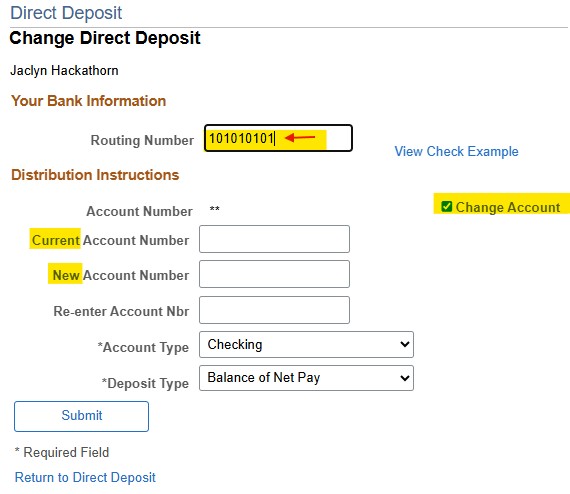
5. Enter the current account number on file for validation purposes.
6. Enter the new account number in the next box.
7. Re-enter the new account number in the next box.
8. Does your new account have the same routing number?
- If not, follow these steps to update the routing number:
- Click in the Routing Number box and backspace the current routing number to remove it.
- Enter your new routing number.
- If your new account does have the same routing number, you may continue with no changes to the routing number box.
9. Is your account the same type of account? (Checking/Savings)
- If yes, you may continue with no changes to account type.
- If no, select the correct account type from the drop-down menu.
10. Deposit Type should already be set as Balance of Net Pay. If it is not, update it to Balance of Net Pay.
- This means the full balance of your pay will deposit to this account.
- When accounts are set to deposit 100%, there can be rounding errors with the paycheck deposit.
- There should always be a Balance of Net Pay account.
11. Double-check your entries.
12. Click Submit.
Log in to your HR/Pay account.
1. Click on the KU Payroll Dashboard tile.
2. Click on the Direct Deposit Classic tile.
- Your existing direct deposit account will be listed.
3. Click on the Add Account button.
4. Enter the full account number of your existing direct deposit account already on file for validation purposes.
- Your existing account on file is listed above, but you will need to enter the entire account number.
- This is similar to entering your current password before updating to a new password.
5. Click Continue
6. You should now be on the Add Direct Deposit screen where you will enter the information for your new account.
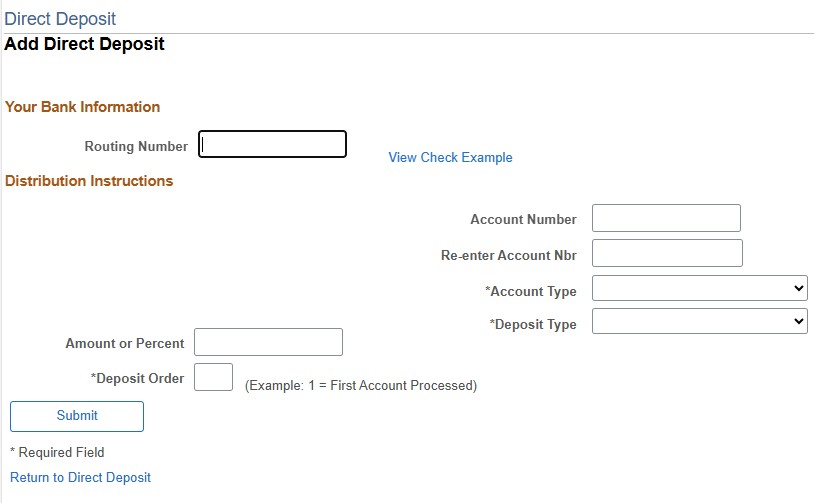
7. Enter the bank Routing Number.
8. Enter the new Account Number and
9. Re-enter the new Account Number.
10. Select the Account Type from the drop-down menu. (Checking/Savings)
- If it is an Able account, select Checking.
11. Deposit Type
- Amount - A set flat amount will deposit to this account.
- Percent - A set percentage of your net pay will deposit to this account.
12. Amount or Percent - enter the designated amount or percentage you wish to have deposited to this account.
13. Deposit Order - Enter 1.
- This means the flat amount or percentage you designated will deposit first.
- The remaining pay will deposit to your Balance of Net Pay account.
14. Review your entry.
15. Click Submit.
Balance of Net Pay note:
Every direct deposit must have a Balance of Net Pay account.
If you want 10% to go to your savings account. Set that as deposit order 1 with the percentage designated.
The next account should be set as Balance of Net Pay so the entire remaining balance of pay will deposit to that account. Do not set up the next account as 90% as this can cause paycheck rounding errors.
See the Deposit Type and Order drop down under the multiple account instructions for further instructions.
I currently have two or more accounts on file.
Log in to your HR/Pay account.
1. Click on the KU Payroll Dashboard tile.
2. Click on the Direct Deposit Classic tile.
- A list of your existing direct deposit accounts will show. Do NOT delete any account.
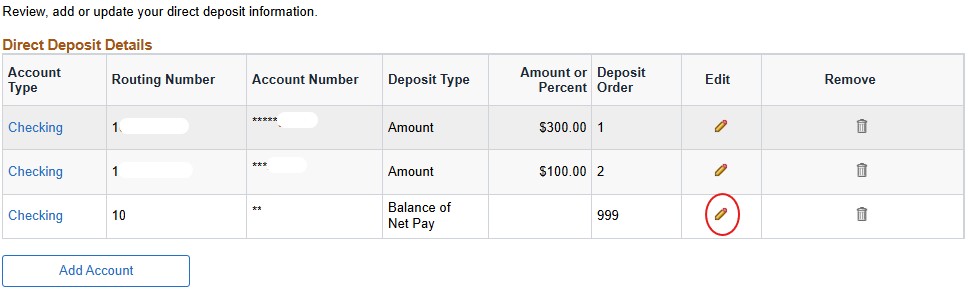
3. Go to the row of the account you wish to replace.
4. Click on the pencil icon in the Edit column. Do NOT delete the account.
- The account details will now show, with only the last 4 digits of the account number showing.
5. Click the Change Account checkbox.
6. Enter the current Account Number on file for validation purposes.
7. Enter the new Account Number in the next box.
8. Re-enter the new Account Number in the next box for validation.
9. Does your new account have the same routing number?
- If not, follow these steps to update the routing number:
- Click in the Routing Number box and backspace the current routing number to remove it.
- Enter your new routing number.
- If yes, you may continue with no changes to the routing number box.
10. Is your account the same type of account? (Checking/Savings)
- If yes, you may continue with no changes to account type.
- If no, select the correct Account Type from the drop-down menu.
11. Do you want the new account to deposit in the same manner as the account you are replacing (percentage/amount/balance)?
- If yes, you may continue with no changes.
- If no, update the Deposit Type and/or Deposit Order boxes accordingly.
- See the Deposit Type and Order drop-down for more information.
- There should always be a Balance of Net Pay account.
- This means the full remaining balance of net pay will deposit to this account.
- Setting accounts with percentages that add up to 100% often cause rounding errors with your direct deposit.
11. Double-check your entries.
12. Click Submit.
Log in to your HR/Pay account.
1. Click on the KU Payroll Dashboard tile.
2. Click on the Direct Deposit Classic tile.
- Your existing direct deposit accounts will be listed.
3. Click on the Add Account button.
4.Enter the full account number of an existing direct deposit account on file for validation purposes.
- Your existing accounts on file are listed above, but you will need to enter the entire account number.
- This is similar to entering your current password before updating to a new password.
5. Click Continue
6. You should now be on the Add Direct Deposit page where you will enter the new account information.
7. Enter the bank Routing Number.
8. Enter the new Account Number and re-enter the new Account Number.
9. Select the Account Type from the drop-down menu. (Checking/Savings)
- If it is an Able account, select Checking.
10.Deposit Type
- Amount - A set flat amount will deposit to this account.
- Percent - A set percentage of your net pay will deposit to this account.
- Balance of Net Pay - The remaining balance of your net pay will deposit to this account after the flat amount and/or percent accounts.
11. Amount or Percent - enter the designated amount or percentage you wish to have deposited to this account and ensure it matches the deposit type you intend.
- Leave Amount/Percent box blank if the deposit type is Balance of Net Pay.
12. Deposit Order - Enter 1, 2, 3, etc for the account priority.
- Flat amount or percentage accounts should have the highest priority.
- Balance of Net Pay accounts should have the last deposit order of 999.
- See the Deposit Type and Order drop-down for more examples.
Every direct deposit must have a Balance of Net Pay account.
- Do not set accounts with percentages that add up to 100% as this causes rounding errors with your direct deposit.
For example:
If you want 10% to go to your savings account. Set that as deposit order 1 with the percentage designated.
The next account should be set as Balance of Net Pay so the entire remaining balance of pay will deposit to that account. Do not set up the next account as 90% as this can cause paycheck rounding errors.
Log in to your HR/Pay account.
1. Click on the KU Payroll Dashboard tile.
2. Click on the Direct Deposit Classic tile.
- Your existing direct deposit accounts will be listed.
3. Click on the trash can icon on the account row that you wish to remove.
4.Enter the full account number of one of the existing direct deposit accounts on file for validation purposes.
- Your current accounts on file are listed above, but you will need to enter the entire account number.
5. Delete Confirmation
6. Ensure the remaining account has a direct deposit type of Balance of Net Pay.
- This means the full balance of your paycheck will deposit to this account.
- Setting an account as 100% results in rounding errors with your paycheck.
Direct Deposit Type is the manner of splitting your net pay between multiple accounts.
- Amount means a flat amount will deposit to the account.
- Percent means a percentage of the total net pay will deposit to the account.
- Balance of Net Pay means the full remaining balance of net pay will deposit to the account.
Direct Deposit Order indicates which account has the highest priority of deposit. Priority 1 will deposit first, priority 2 will deposit second, etc up to 999.
- In the event that your paycheck is less than an account with a set amount, lower priority accounts may not receive a deposit. View Examples 2 and 3 below.
Every direct deposit should have an account set to Balance of Net Pay.
Example 1:
Mr. Hawk wants his paycheck to go to 3 different bank accounts in the following manner:
- $50.00 to go to one account shared with his teen,
- 10% to go to savings
- The rest to go to his checking account.
The following set up should be used:
- Teen account: set as Amount, with Deposit Order 1, and $50.00 in the amount/percent box.
- Savings account: set as Percent, with Deposit Order 2, and 10% in the amount/percent box.
- Checking account: set as Balance of Net Pay, with Deposit Order 999 and the amount/percent box blank.
Net Pay Distribution for a paycheck with $1,000.00 net pay:
- Deposit Order 1: $50.00 (set amount)
- Deposit Order 2: $100.00 (10%)
- Deposit Order 3: $850.00 (remaining balance)
Example 2:
Mrs. Hawk wants her paycheck to go to her bank accounts as follows:
- $300.00 to go to an account at Bank X.
- $100.00 to go to Bank Y.
- The rest to go to Bank Z.
The following set up should be used:
- Bank X: set as Amount, with Deposit Order 1, and $300.00 in the amount/percent box.
- Bank Y: set as Amount, with Deposit Order 2, and $100.00 in the amount/percent box.
- Bank Z: set as Balance of Net Pay, with Deposit Order 999, and the amount/percent box left blank.
Net Pay Distribution for a paycheck with $1,000.00 net pay:
- Bank X: $300.00 (amount)
- Bank Y: $100.00 (amount)
- Back Z: $600.00 (balance)
If the net pay is $300.00 or less, Bank Y and Z will not receive a deposit.
If the net pay is $400.00 or less, Bank Z will not receive a deposit.
Bank Z will receive any amount over $400.00.
Example 3A:
Cousin Hawk wants their paycheck to go to 3 accounts as follows:
- 10% to go to Savings.
- 60% to go to Checking A for living expenses.
- 30% to go Checking B for entertainment.
Cousin Hawk needs to determine the highest priority. Cousin decides Savings is the most important and entertainment is the least important.
The following set up should be used:
- Savings: set as Percent, with Deposit Order 1, and 10% in the amount/percent box.
- Checking A: set as Percent, with Deposit Order 2, and 60% in the amount/percent box.
- Checking B: set as Balance of Net Pay, with Deposit Order 999 and the amount/percent box left blank.
- Setting Checking B as 30% will cause rounding errors with the direct deposit accounts. Be sure to set one account as Balance of Net Pay.
Net Pay Distribution for a paycheck with $1000.00 net pay:
- Savings: $100.00 (10%)
- Checking A: $600.00 (60%)
- Checking B: $300.00 (remaining balance)
Example 3B:
Cousin Hawk decides that Checking A must always have $700.00. Cousin will need to:
- Edit Checking A to Deposit Order 1, Amount, and enter $700.00 in the amount/percent box.
- Update Savings to Deposit Order 2.
Net Pay Distribution for a paycheck with $900.00:
- Check A: $700.00 (amount)
- Savings: $100.00 (10%)
- Checking B: $200.00 (remaining balance)
Payroll Paycard
The State of Kansas has partnered with US Bank to offer a payroll paycard service for employees who do not have a bank account. Paychecks are automatically deposited to the paycard, which is used as a debit card. Employees should contact Human Resource Management at 785-864-4946 to sign up.